Keyboard Shortcuts & Console
Keyboard Shortcuts
Open the Help menu in the left sidebar and click Keyboard Shortcuts to view all available keyboard shortcuts.
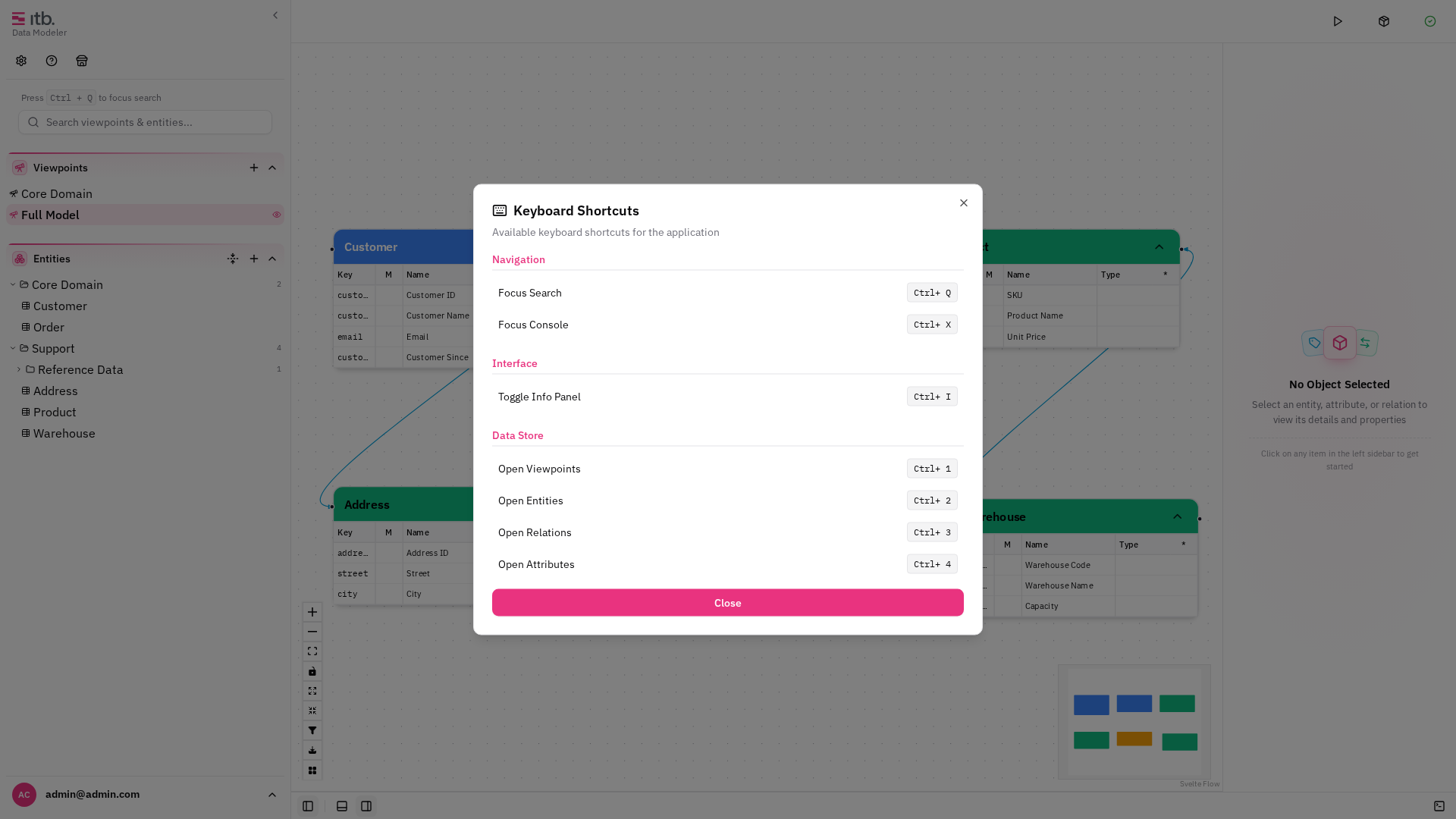
Every registered shortcut uses Ctrl. There are no single-letter shortcuts, which is deliberate: you type entity and attribute names constantly, and a bare letter would fire while you did. (Escape below is not a registered shortcut — it is the dialogs and drawers closing themselves.)
Navigation
| Shortcut | Action |
|---|---|
| Ctrl+Q | Focus Search |
| Ctrl+X | Focus Console |
Interface
| Shortcut | Action |
|---|---|
| Ctrl+I | Toggle Info Panel |
| Ctrl+1 | Open Viewpoints |
| Ctrl+2 | Open Entities |
| Ctrl+3 | Open Relations |
| Ctrl+4 | Open Attributes |
| Escape | Close the active dialog or drawer |
Reserved, not yet assigned
Ctrl+Z, Ctrl+Y, Ctrl+M and Ctrl+5 to Ctrl+0 are registered but carry no action yet — the shortcuts dialog lists them as To Be Defined and Action 5…10.
Ctrl+Z does not undo. It is one of the reserved keys above. To go back, use the model history: Sync & History in the header toolbar, where you can revert the model to an earlier point in its transaction journal.
Shortcuts are disabled when you are typing in a form input, search field, or the console — so you can freely type without accidentally triggering an action.
The Console
The bottom panel of the workspace contains an interactive console with a command-line interface.
Using the Console
- Click the console input field at the bottom of the screen.
- Type a command and press Enter.
- Output appears above the input line.
Available Commands
| Command | Description |
|---|---|
help | Show all available commands |
clear | Clear the console output |
history | Display command history |
clearhistory | Clear the command history |
whoami | Show current user information |
status | Check ITB API health |
load remote | Load model from the API |
save local | Save model to local storage |
save remote | Save model to the API |
That is the whole list: eight commands, of which load and save take an argument. help
prints them grouped as System, Status and Tools.
Creating entities from a JSON Schema is a menu action, not a console command — look for it in the canvas background menu rather than typing it here.
Command History
The console remembers up to 100 commands. Navigate through previous commands with the Up and Down arrow keys.