Model Persistence & Sync
ITB tracks all changes locally in your browser (IndexedDB) and synchronizes them with the API. This page covers the full model state lifecycle, including save, discard, history, locking, and recovery.
Model State Lifecycle
Your model is always in one of three states:
| State | Indicator | Meaning |
|---|---|---|
| Clean | Green checkmark | All changes are saved to the server. |
| Dirty | Orange dot | Local changes exist that have not been saved. |
| Locked | (internal) | An edit lock is held on the server while you have unsaved changes. |
When you make your first edit, the client automatically acquires a server-side edit lock with the current model version. The lock is released when you save or discard.
Save and Discard
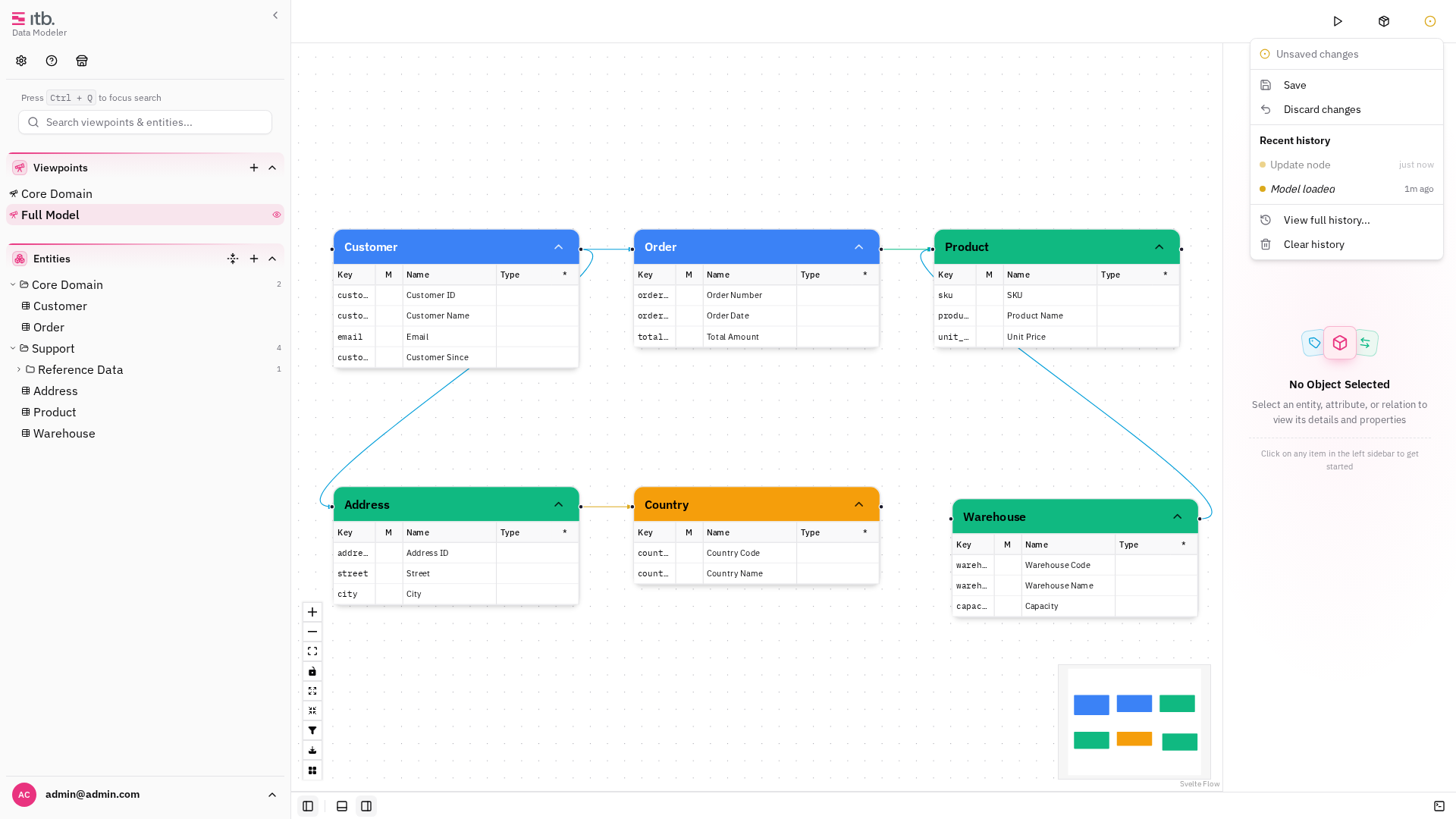
When you make changes, the header shows an Unsaved changes indicator:
- Save — push all pending changes to the API. The server increments the model version, releases the lock, and returns the new version. The client syncs this version locally before allowing further edits.
- Discard — release the lock, re-fetch the model from the server, and reload all local stores. All unsaved local changes are lost.
Both buttons are disabled while a save is in progress or if the model lock could not be acquired.
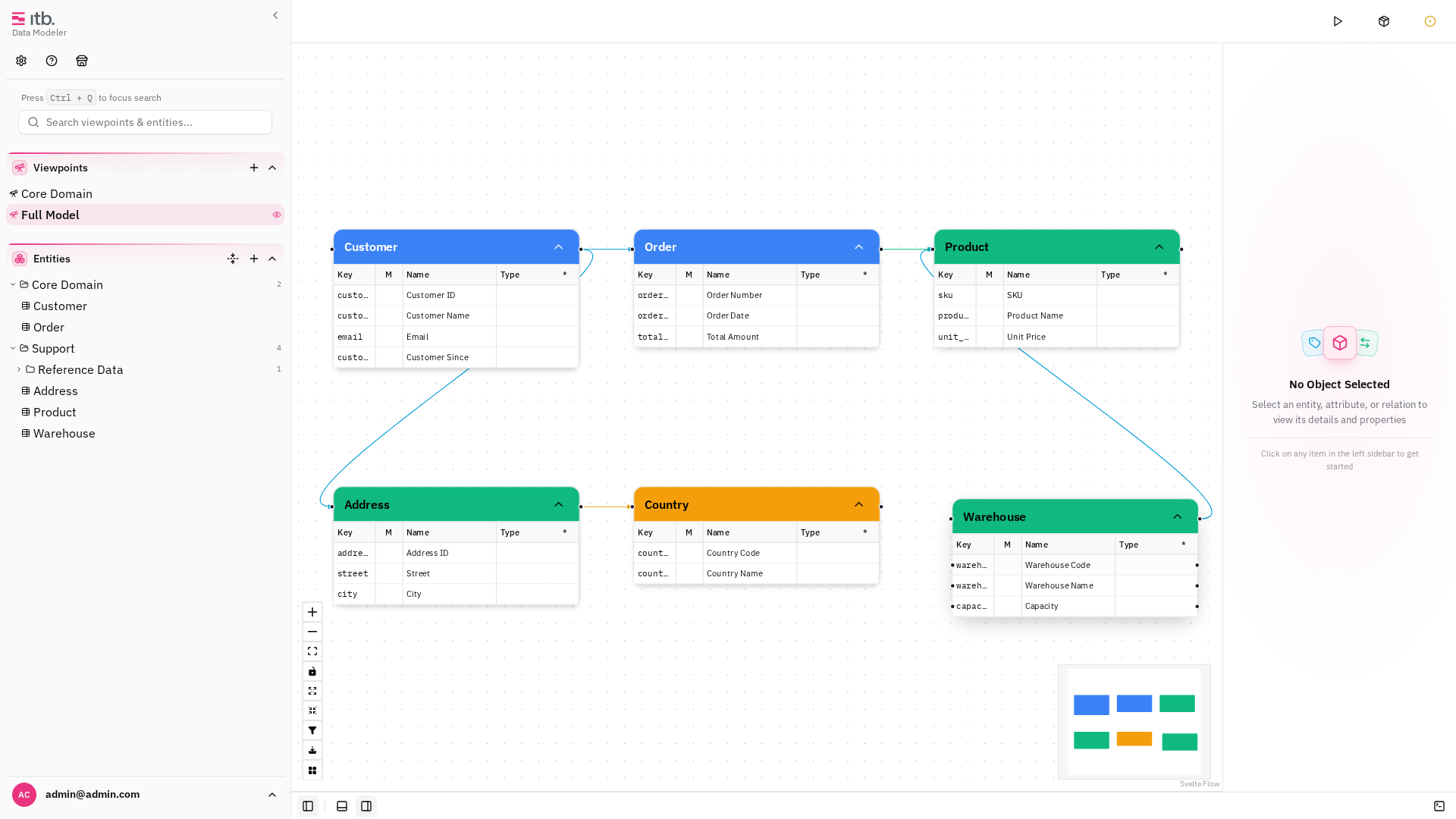
Changes are persisted locally in IndexedDB even before you save. If you close the browser accidentally, your work is not lost — but it is not yet on the server.
History and Revert
Click the sync menu button in the header to view recent history entries, or open the full history modal for a complete list.
- Each entry shows a label (the type of change), a relative timestamp, and a colored dot indicator.
- Green dot — the entry was included in a server-side save (at or before the last save point).
- Orange dot — the entry is a local-only change that has not been saved yet.
History is preserved across saves. After a save, all current entries are marked as saved; subsequent edits create new unsaved entries. The save point (the ID of the most recent transaction at save time) is persisted in IndexedDB and survives page reloads.
Reverting
To revert:
- Click a history entry that is older than the most recent entry. (The most recent entry is disabled — reverting to the current state is a no-op.)
- A confirmation dialog shows how many transactions will be reverted.
- Click Revert to confirm.
Reverting to a pre-save entry creates a new dirty state — you must save again to commit the reverted state to the server. This is consistent with the rest of the app's dirty-model semantics.
After a discard, the journal resets to a single baseline entry.
Use Clear History to remove all transaction records and accept the current state as the baseline.
Lock Mechanism
The lock is not multi-user protection. It exists because a single user's model can be modified from multiple surfaces (the UI and the API), so the server tracks a version number and a lock to prevent concurrent modifications from corrupting state.
How it works
- When you make your first edit, the client sends your local model version to
POST /api/v1/model/lock. - The server grants the lock only if your version matches. If versions diverge (e.g., another API call modified the model), it returns 412 Precondition Failed and the lock error is shown in the UI.
- The lock has a server-side TTL (default: 30 minutes). While you hold the lock, the client sends a periodic heartbeat (approximately every 20 minutes) to refresh the lock timestamp. This prevents silent expiration during long editing sessions.
- When you switch away from the browser tab and return, the client verifies the lock is still held. If it expired while the tab was inactive, the lock error is shown immediately.
Recovery
If a version or lock error occurs:
- The Save button is disabled and a warning is shown.
- Discard is the recovery mechanism. It releases the lock, re-fetches the model from the server, and resets all local state.
- Discard is destructive — all unsaved local changes are lost. This trade-off is intentional: it guarantees you return to a clean, consistent state.
Upload and Download (.itb.zip)
Downloading Your Model
Open Model Actions in the header and choose Download Model. The model is exported as a .model.itb.zip file with a timestamped filename (e.g. 2026-05-04_10-30.model.itb.zip).
Uploading a Model
- Open Model Actions in the header and choose Upload Model.
- Select a
.model.itb.zipfile from your file system. - The upload dialog shows progress: Acquiring lock → Uploading → Fetching → Loading data → Success.
- Click Close when complete.
The uploaded model replaces the current model entirely.
Only files ending in .model.itb.zip are accepted. If your file has a different extension, rename it before uploading.
Deleting the Model
Open Model Actions in the header and choose Delete Model to remove the entire model from the server. A confirmation dialog appears first.

Export Artifacts
After code generation, use Download Artifacts to export the generated output as an .artifacts.itb.zip file.