Relations
Relations connect two entities and describe how they are associated. For example, a Customer has many Orders, or an Order maps to many Products.
Browsing Relations
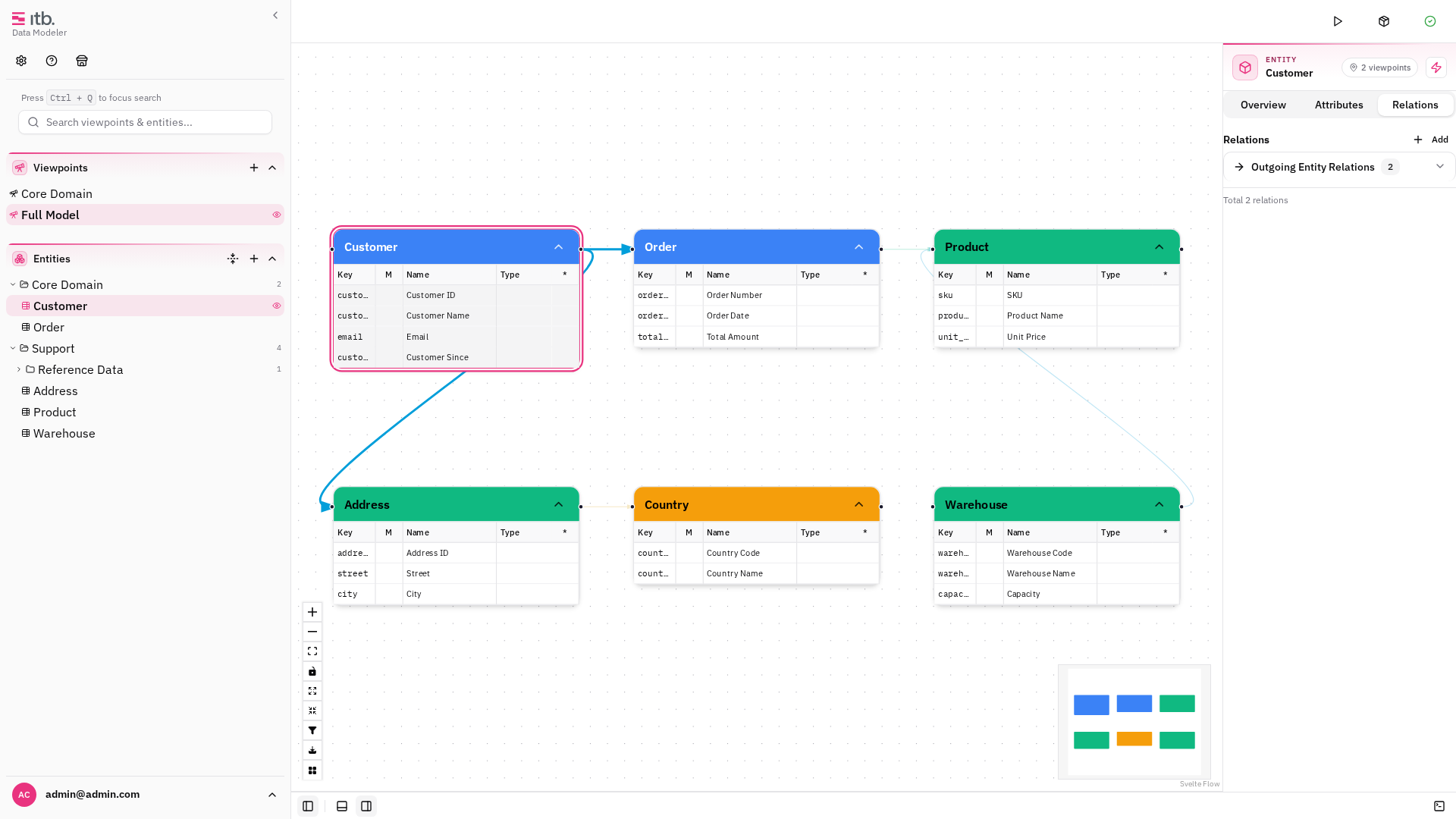
Open the Relations drawer by pressing Ctrl+3. The drawer lists all relations with their source, target, and connection type.
Creating a Relation
- Select a source entity on the canvas or in the tree.
- In the right sidebar, scroll to the Relations section and click +.
- Fill in the relation form:
| Field | Description |
|---|---|
| Source | The originating entity (pre-filled with the selected entity) |
| Target | The destination entity |
| Connection | Cardinality — see below |
| Datatype | Relation classification — see below |
| Type | Relation type category (e.g. "Reference", "Composition") |
| Source Attribute | Optional — links a specific attribute on the source |
| Target Attribute | Optional — links a specific attribute on the target |
- Click Create.
Cardinality
The Connection field defines the cardinality of the relation:
| Value | Meaning | Example |
|---|---|---|
has_one | One-to-one | Customer → Address |
has_many | One-to-many | Customer → Orders |
many_many | Many-to-many | Order ↔ Products |
Relation Datatypes
The Datatype field classifies the nature of the relation:
| Value | Description |
|---|---|
relation | A standard entity-to-entity association |
mapping | A mapping or junction relationship (typically for N:N) |
dependency | A dependency or lookup reference |
Relation Types
Relation types are managed under Settings → Types → Relation Type. Each type has a Name (e.g. "Reference", "Composition") that describes the semantic nature of the link.
Relations on the Canvas
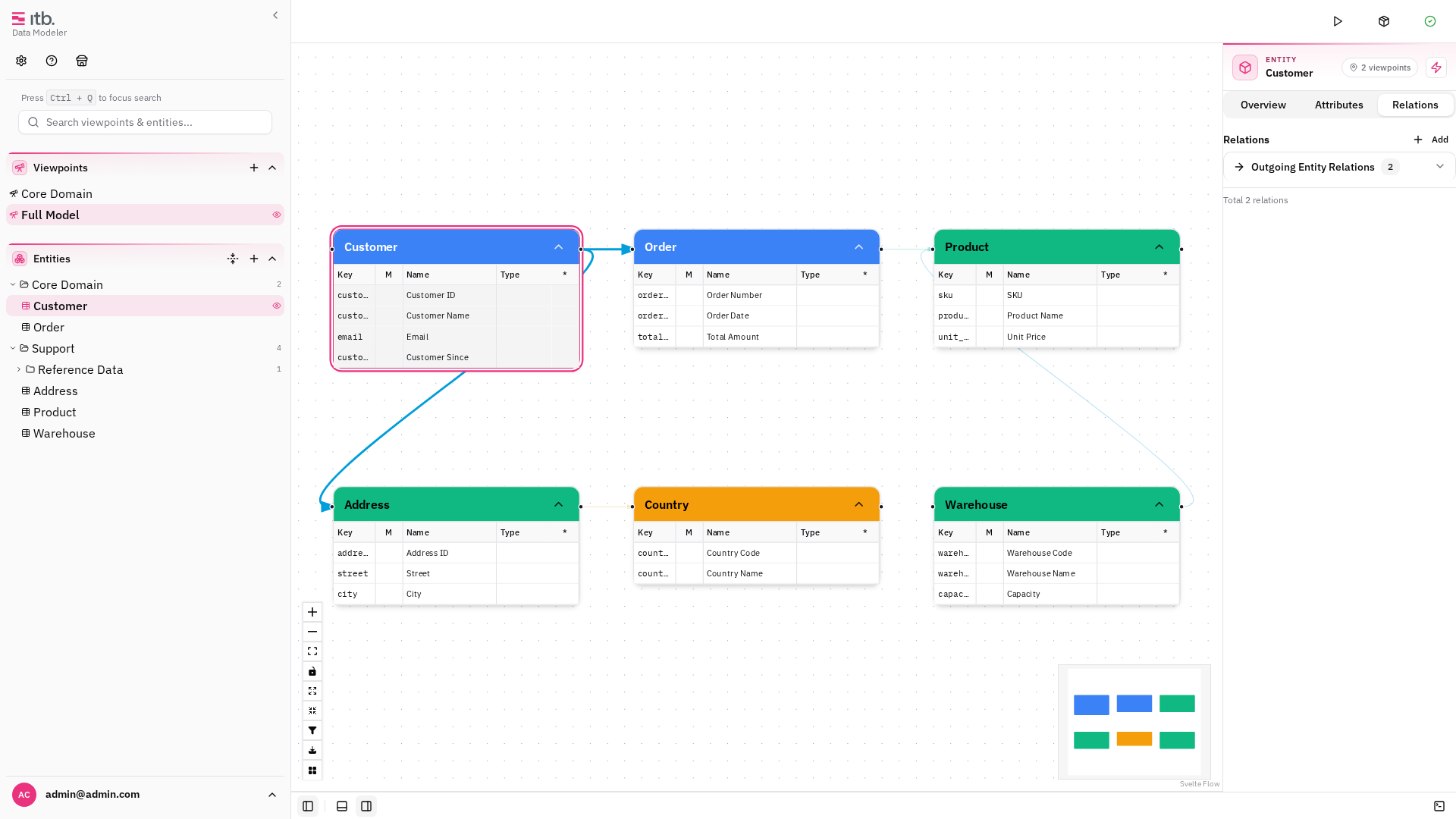
Relations appear as directed edges on the canvas connecting source and target entities. When you select an entity, its connected edges are highlighted while unrelated edges are dimmed.
Editing a Relation
Click a relation edge on the canvas or select it from the Relations drawer to open it in the right sidebar. Modify any field and click Save.