Custom Properties
Custom properties let you attach additional metadata to entities, attributes, or relations beyond the built-in fields. For example, you might track "Data Owner", "Source System", or "Contains PII" across your model.
Defining Custom Properties
- Open Settings from the left sidebar.
- Go to the Custom Properties tab.
- In the left panel, select the target: Entity, Attribute, or Relation.
- Click + to create a new property.
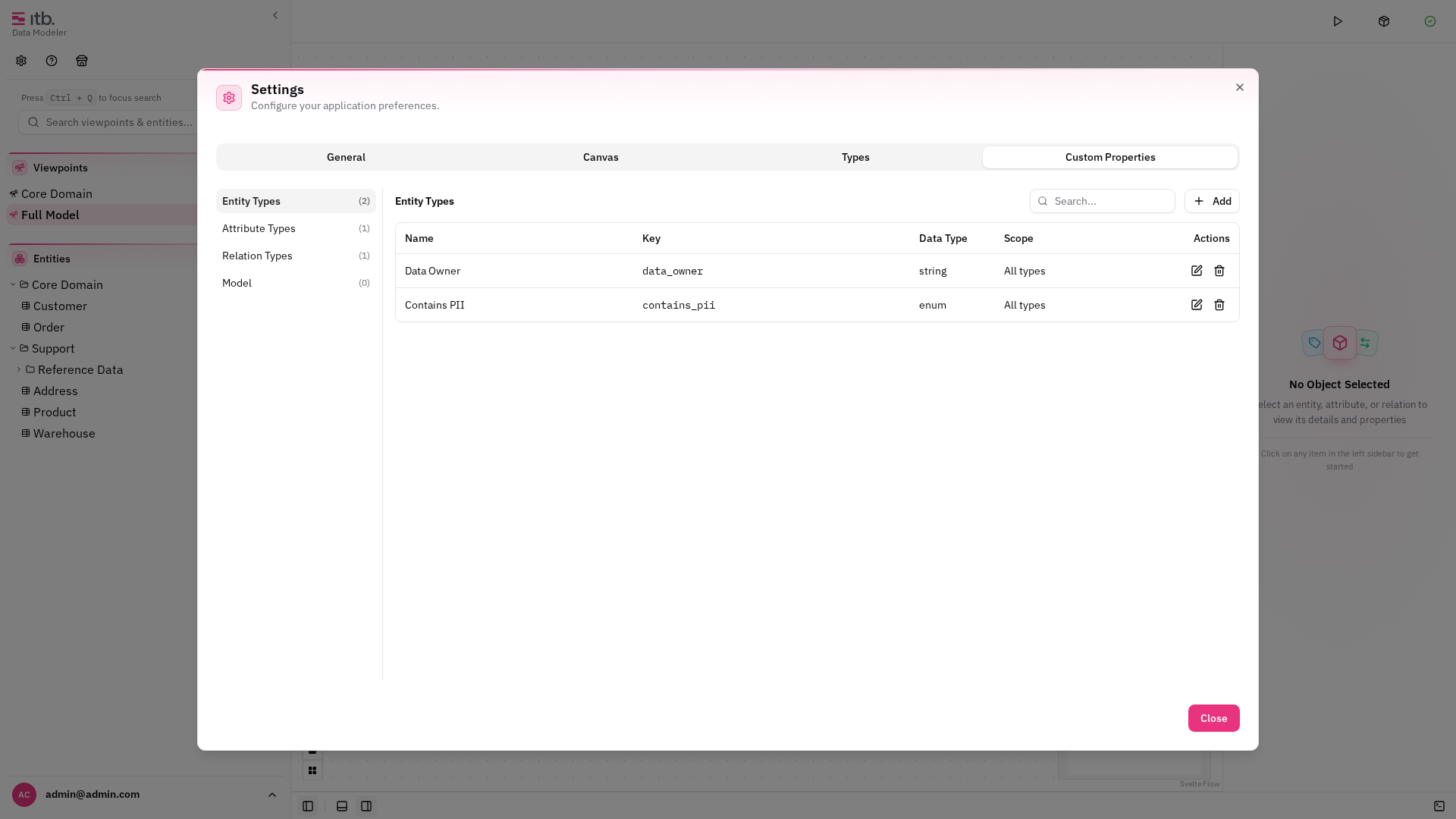
Property Fields
| Field | Description |
|---|---|
| Name | Display name (e.g. "Data Owner") |
| Key | Technical identifier (e.g. data_owner) |
| Data Type | One of: string, text, number, date, time, enum |
| Scope | Restrict to specific types (e.g. only "Business Entity" types) or leave as "All" |
For enum properties, define the allowed values (label/value pairs) when creating the property.
Editing and Deleting Properties
Click a property in the table to edit it. Use the delete button (with confirmation) to remove a property definition — this also removes all stored values for that property.
Assigning Values
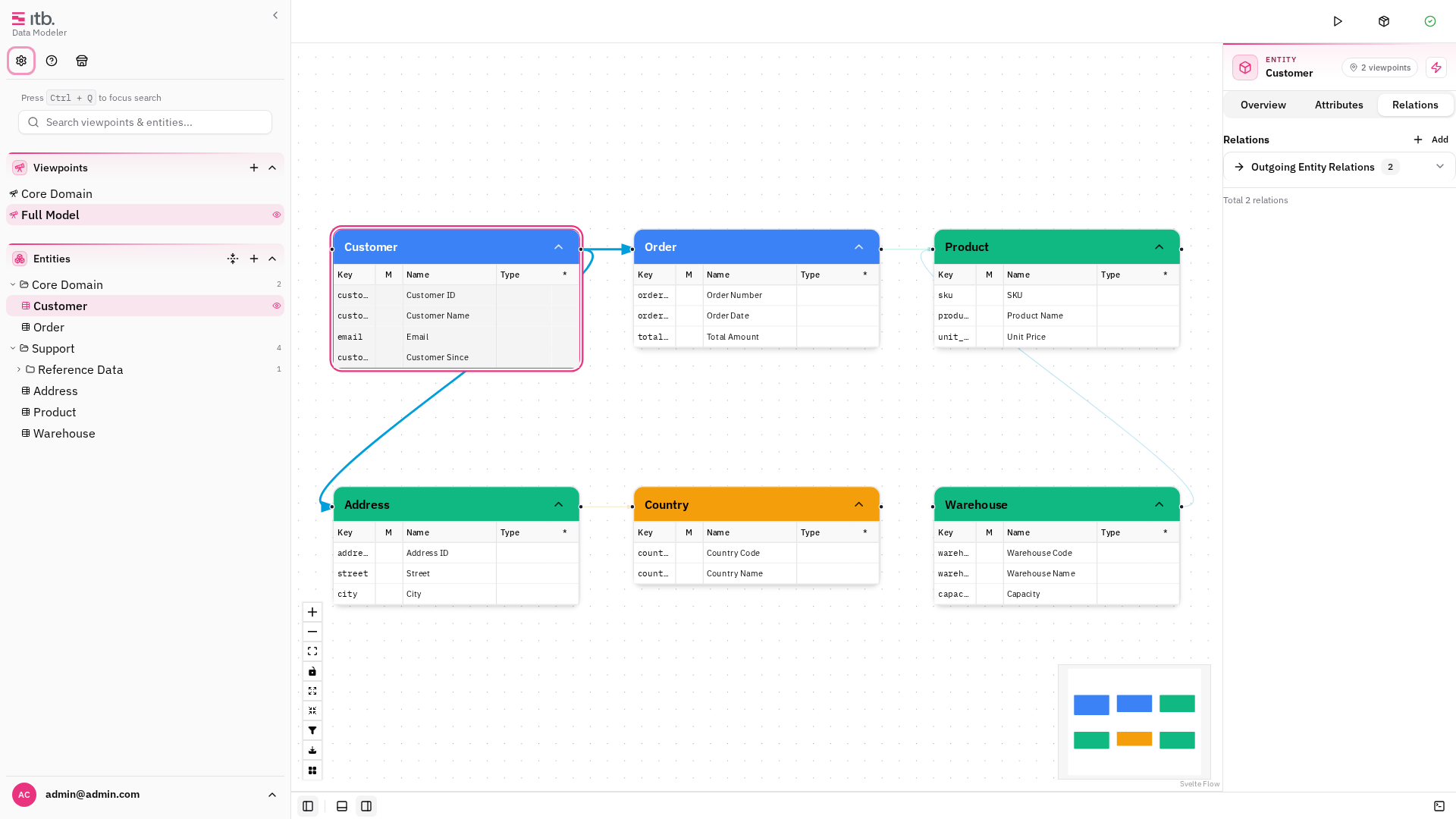
Once a custom property is defined, its values appear on matching entities, attributes, or relations in the right sidebar.
- Select an entity (or attribute/relation) on the canvas.
- In the right sidebar, scroll to the Properties section.
- Enter or select a value for each custom property.
Values are saved automatically as you type.
Scoping to Types
When defining a custom property, you can restrict it to specific types. For example, a "Contains PII" property scoped to "Business Entity" types will only appear on entities of that type.
Leave the scope empty to make the property available on all items of that category.