Git Integration
ITB can push and pull your model to a Git repository, enabling version control and collaboration.
Connecting a Repository
Both the Push and Pull dialogs include a Git connection form with the following fields:
| Field | Description |
|---|---|
| Saved Connections | Dropdown of previously saved connections |
| Repository URL | The Git remote URL |
| Author Name | Name for Git commits |
| Author Email | Email for Git commits |
| Username | Git authentication username |
| Token | Personal access token (shown as password field) |
| Remember Credentials | Save this connection for future use |
| Connection Label | A name for the saved connection (shown when "Remember" is checked) |
| Path | Folder path within the repo (default: model) |
| Branch | Target branch name (default: main) |
Pushing to Git
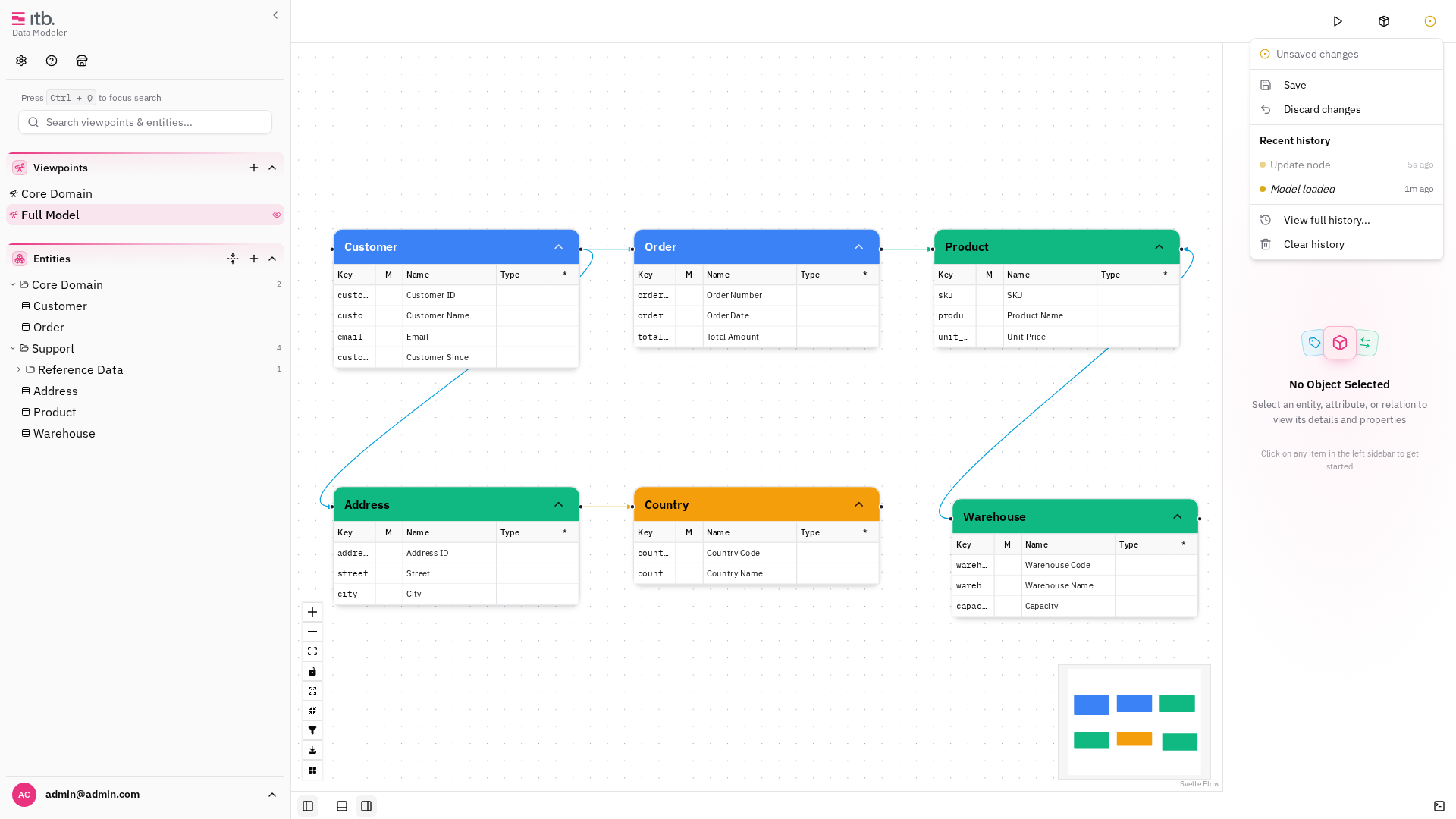
- Open Model Actions in the header and choose Publish Model to Git (Git branch icon).
- Fill in the connection details or select a saved connection.
- Enter a Source Branch and Target Branch.
- Click Push.
The dialog shows progress: Pushing... → Successfully pushed to {branch}.
Handling Conflicts on Push
If the remote branch has moved since your last pull, the server returns a 409 conflict. ITB offers two recovery options:
- Push to a new branch — enter a new branch name and push there instead. This lets you create a merge request later.
- Save backup & pull latest — downloads a backup of your current model, then pulls the latest version from the remote. You can re-apply your changes afterward.
Pulling from Git
- Open Model Actions in the header and choose Restore Model from Git.
- Fill in the connection details or select a saved connection.
- Enter the Branch and Path.
- Click Pull.
The dialog shows progress: Acquiring lock → Pulling from git → Fetching model → Loading data → Success.
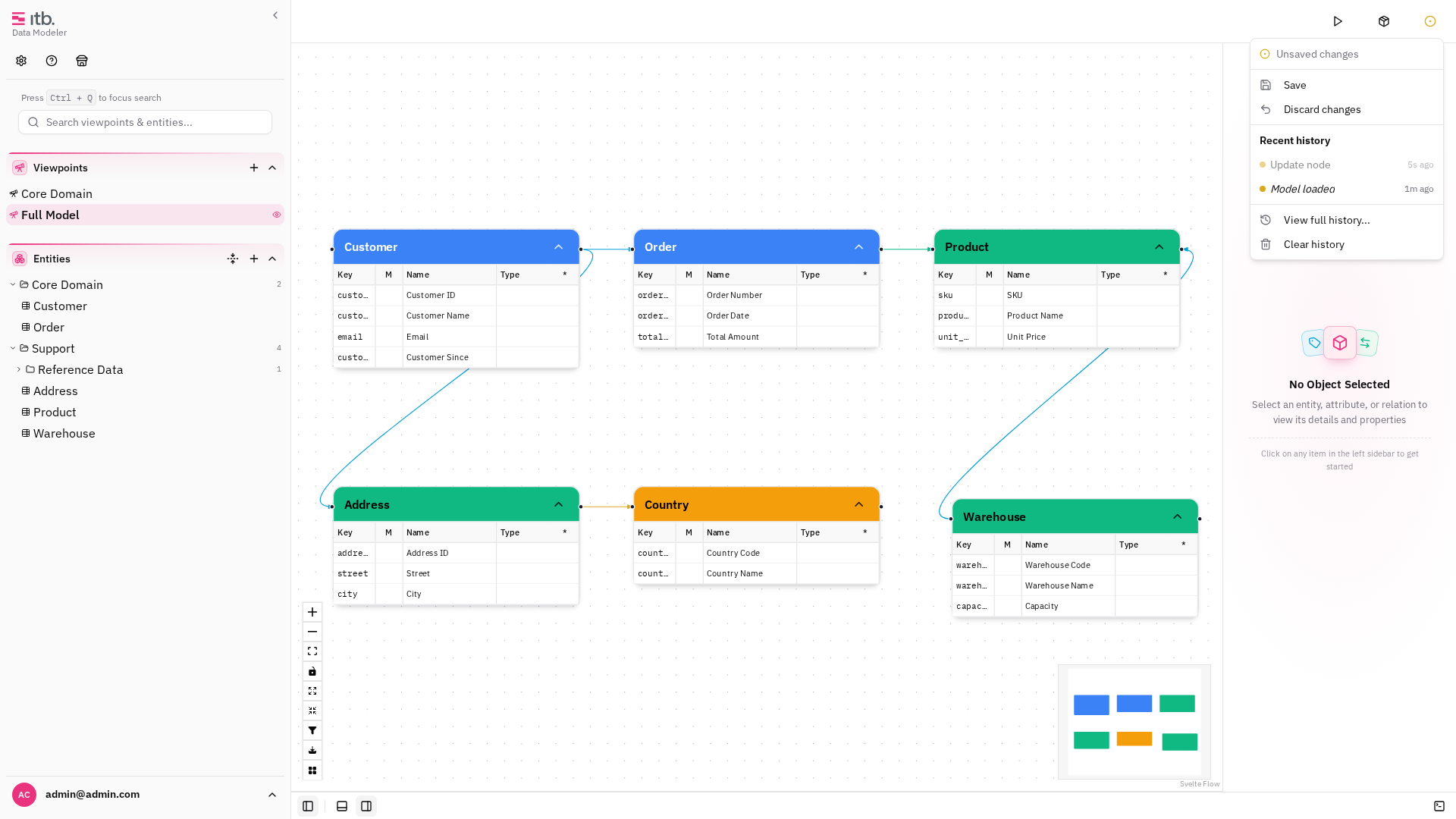
Pulling replaces your current model with the version from Git. Make sure to save or export your current work first if you have unsaved changes.
Saved Connections
When you check Remember Credentials, the connection is saved locally. Next time you open Push or Pull, select it from the dropdown to auto-fill all fields. Delete a saved connection using the trash icon next to it in the dropdown.