From a model to generated artifacts
About 30 minutes. You will install a demo, generate from it, then change one thing at a time and watch the output change. Nothing here needs a licence and nothing you do affects anyone else — packs and models are per user.
The point is not the demo. It is that you decide what gets generated by how you model, and the fastest way to believe that is to change a model and look at the result.
The demo bundles carry their own model, and installing one replaces the model in your workspace. A replaced model cannot be restored. If you have work in there, save a copy first with Model Actions ▸ Download Model in the header.
1 · Install the demo
- Open the Marketplace (package icon in the left sidebar, under the logo).
- Switch to the Banian tier and the Bundles group.
- On Demo: Retail Business Objects, click Load.
A dialog lists what the bundle will install before anything happens: a template pack, a capability pack, and a model of six entities. Read it, then confirm.
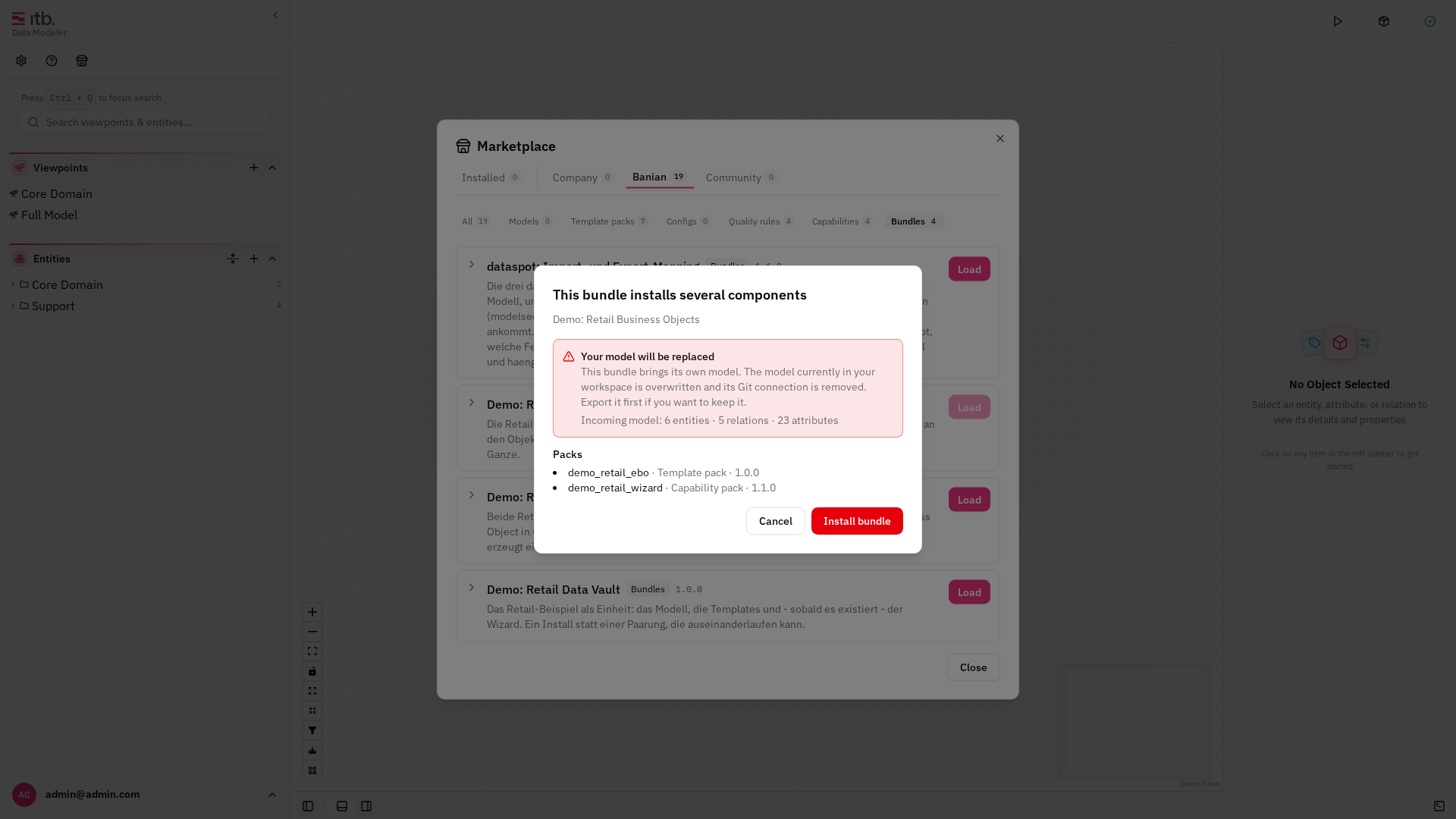
- When ITB offers to reload, accept.
The reload is not a formality. A capability pack adds wizards and menu entries that the application reads when it starts, so its contents appear only afterwards.
What you now have
Open the Entities drawer (Ctrl+2). Six entities in three groups:
| Group | Entities | Type |
|---|---|---|
| Sales | Customer, Order | Business Object |
| Sales | Address, OrderLine | Value Object |
| Product | Product | Business Object |
| Procurement | Supplier | Business Object |
The six entities, group by group.
Click Customer and look at the right sidebar. Its attributes carry types — Identifier, Required Property, Descriptive Property — and under Custom Properties it has an owner, a classification, a system of record. Remember those; they are about to show up in the output.
Both are sections of the Overview tab: Data carries the attributes and their types, Properties the governance values. The first reach the contract, the second the catalog.
2 · Generate, and read what came out
- Click Generate All (play icon in the header toolbar) and wait for the green tick.
- From the header menu, choose Download Artifacts.
- Unpack the archive.
Generation runs every definition of every installed pack over the whole model in one go.
You get five files:
Retail Business Objects/Sales/Customer.schema.json
Retail Business Objects/Sales/Order.schema.json
Retail Business Objects/Product/Product.schema.json
Retail Business Objects/Procurement/Supplier.schema.json
catalog.html
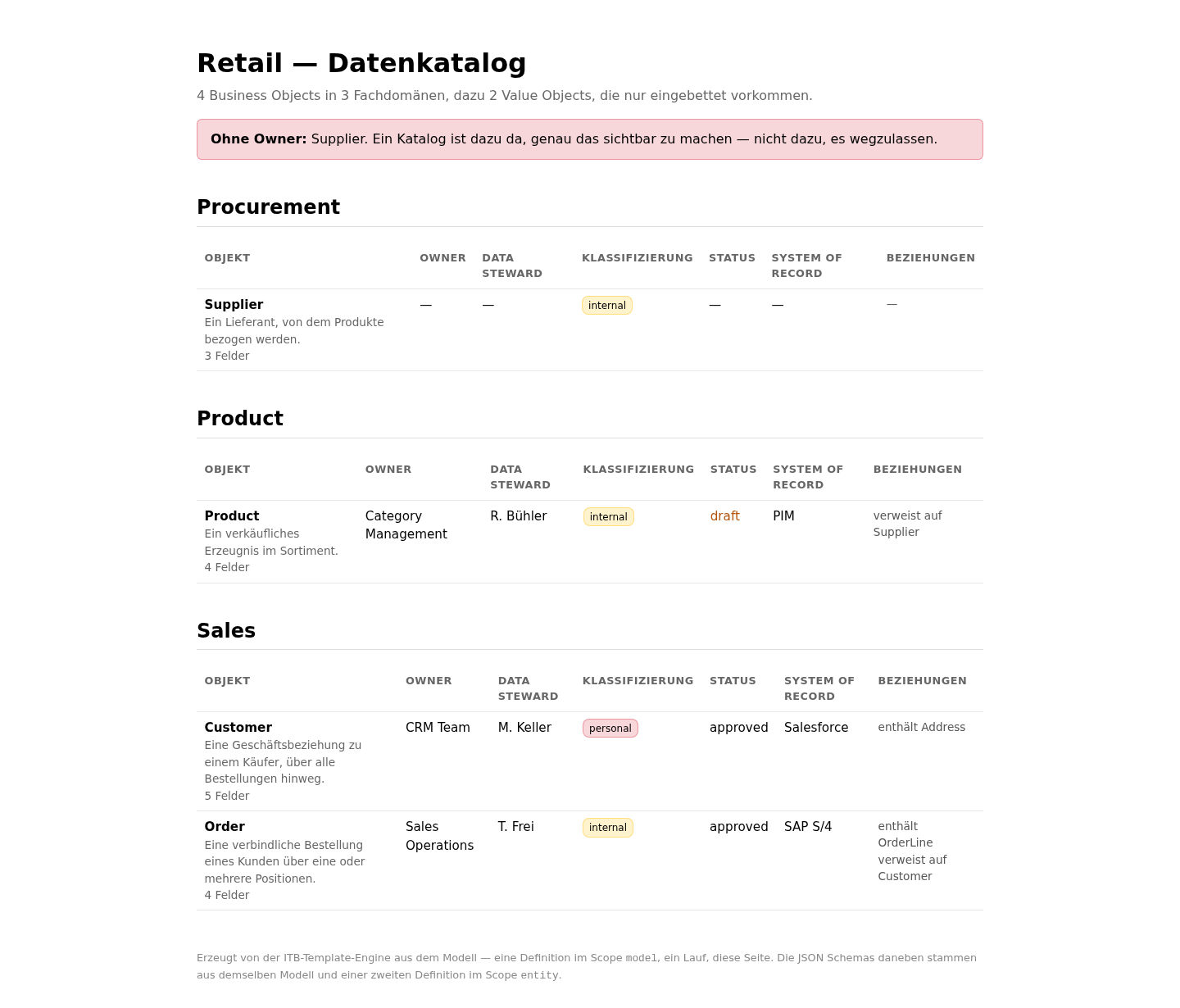
Open catalog.html in a browser. It is a data catalog: your objects grouped by
business domain, with owner, steward, classification and system of record — and Supplier
named at the top as having no owner.
Now open Customer.schema.json. Its identifier is required and readOnly; its
descriptive properties are optional; the address is embedded as an object rather than
referenced.
Two things worth noticing
Address and OrderLine got no file. They are Value Objects — they have no identity of
their own and exist only inside the object that contains them. Look at Customer's schema:
the address is in there, inline.
The catalog is one file for the whole model, the schemas are one file per object. Same pack, same run, two kinds of rule.
3 · Add an object, and watch it appear
Now change the model.
- Right-click on empty canvas and choose New Business Object.
- Step 1 — name it
Invoice, kind Business Object, place it next to Order, and pick your viewpoint. - Step 2 — identifier
invoice_number, data type Text. - Step 3 — domain
Finance, ownerAccounting, classification internal. - Finish.
The wizard created the entity, its identifier attribute, its three governance values and its node on the canvas — in one action.
- Generate All and download again.
Invoice.schema.json is there, and the catalog has a Finance section with one row in it.
4 · Change the type, and watch it disappear
This is the step worth doing slowly.
- Select Invoice on the canvas.
- In the right sidebar, change Type from Business Object to Value Object.
- Generate All and download.
Invoice.schema.json is gone, and the catalog row with it.
Nothing else changed. The entity is still there, with the same name and the same attributes. The entity type is what decides whether a file is produced at all — and a value object deliberately produces none, because it is meant to live inside another object.
The Type control in the Data section of the Overview tab — the one change this step asks for. The recording uses an existing business object; the effect is the same whichever one you pick.
- Change the type back to Business Object.
5 · Ask ITB which rule fired, without generating
You just watched a file appear and disappear. This step is how you find out why beforehand — no generation, no download.
- Right-click the title bar of the Customer object on the canvas and choose Show templates. (Right-clicking further down inside the box opens the menu for the attribute you hit, which is a different menu.)
- The Templates tab lists every definition that matched: the artifact it would produce, and the pack it came from.
- On that row, click Explain why.
The panel names the definition, the artifact and the pack; Explain why reports the condition that matched.
The explanation names the condition — the definition asks for type_key: ebo_object, and
Customer is one. That is the whole of the matching rule. View code on the same row
shows the artifact itself.
- Now do the same on Address.
Nothing matched. No definition in the pack names ebo_value_object, so the list is empty
— and that is the correct answer, not a failure. It is the same fact you produced in the
previous step by generating, available in two clicks.
"No template matches this entity — it would not be generated." A value object, answered without generating anything.
This is the fastest way to debug a pack you are writing: if an artifact you expect is missing, ask the entity why before reading the configuration.
Full detail on the panel and on matching: Show Templates.
6 · Change a relation, and watch the shape change
Relations are a tab of the entity panel, not a section under the attributes.
- Select Order. In the right sidebar, open the Relations tab and click +.
- Target Invoice, Connection has_one, Type Contains. Click Create.
- Generate All and download.
Open Order.schema.json: the invoice is now embedded inside it, as a nested object.
- Edit that relation and change its Type to References.
- Generate again.
Now the order carries invoice_number instead — a reference by identifier, not a copy.
The two objects did not change. The relation type decided the shape.
7 · Leave out an owner, and watch the catalog complain
- Select Invoice, and in the right sidebar clear the Owner custom property.
- Generate All, download, open
catalog.html.
Invoice is now named at the top, alongside Supplier, as having no owner — and it is still listed in its section. A catalog exists to make a gap visible, not to hide the row.
8 · The same business world, a different configuration
The last step shows what the first seven were building towards.
- In the Marketplace, install Demo: Retail Data Vault. It replaces your model — that is what the dialog warns about, and here it is what you want.
- Generate All and download.
Seven files, and not one of them a JSON Schema: three staging views, two hubs, one link and one satellite, as dbt models.
Same customers, same products, same orders. A different pack, a different set of types, a completely different output — and the application itself did not change.
Install Demo: Retail Business Objects and Data Vault to get both worlds in one model, with mapping edges showing which business object ends up in which hub, link or satellite. Generating over it runs both packs at once and produces all twelve files.
What you just learned
| You changed | The output changed because |
|---|---|
| The entity's type | The type decides whether a file is produced at all |
| The attribute's type | It gives the column its role — identifier, required, descriptive |
| The relation's type | It decides embedded or referenced |
| A custom property | It is a statement about the object, so it reaches the catalog and no contract |
| The installed pack | Everything above is read from the pack, not built into ITB |
Pack Configuration explains each of those levers in full, and Custom Wizards covers the wizard you used in step 3.